Groups / Forums / Communities
Hubzilla makes it very easy to create conversation groups similar to the former popular ‘circles’ on Google Plus or groups on Facebook.
There are two different methods for doing this, which differ significantly in terms of type, function and practicality: privacy groups and forum channels.
With privacy groups
Non-public communication within a specific user group can be easily achieved from your channel using the ‘Privacy Groups’ app.
Privacy groups fulfil a triple function in Hubzilla. The function relevant to the purpose discussed here is their use for communication in closed groups.
The functionality of privacy groups is already available in every channel. Nevertheless, you must install the  ‘Privacy Groups’ app, because only this app offers the option of creating your own privacy groups and then adding connections to them.
Once the app is installed and in the app menu (or even pinned to the navigation bar), you can open it.
A blank form for creating a privacy group is displayed.

The sidebar also displays the existing privacy groups.
If you select one there, it will be displayed in the content area (centre) with its parameters. In addition, connections that are not in the group are displayed in the left column below the parameter area, while all connections that are in this group appear in the right column.
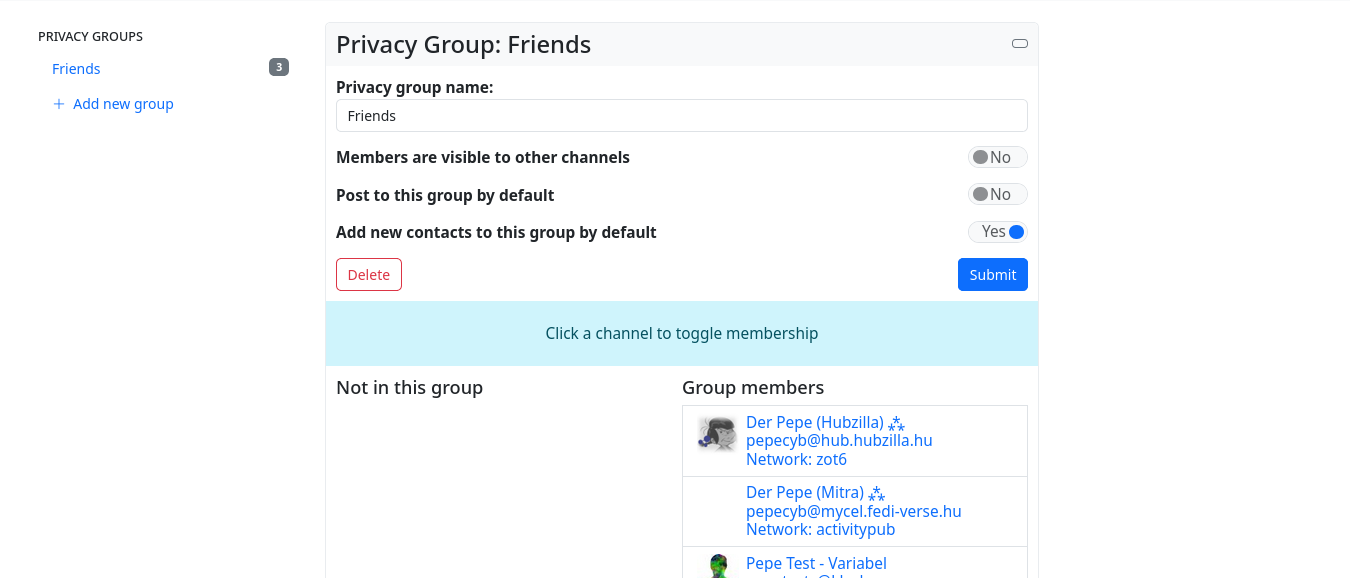
When displaying (for editing) a group, an additional link ‘+ Create new group’ appears in the sidebar, which displays a new empty form.
If you want to create a privacy group, you must of course give it a name. You can also specify whether other channels in the Fediverse can see who is a member of this group. You can also specify a group (only one, of course) to which posts are sent by default. If you specify this for a privacy group, then, unless you specify otherwise, every post will now only be sent to the members of the group. And this also applies to everything else we share, e.g. images, wiki pages, etc.
Finally, you can specify whether every new contact is automatically assigned to this group (as well). To form a kind of community, all three switches should remain off.
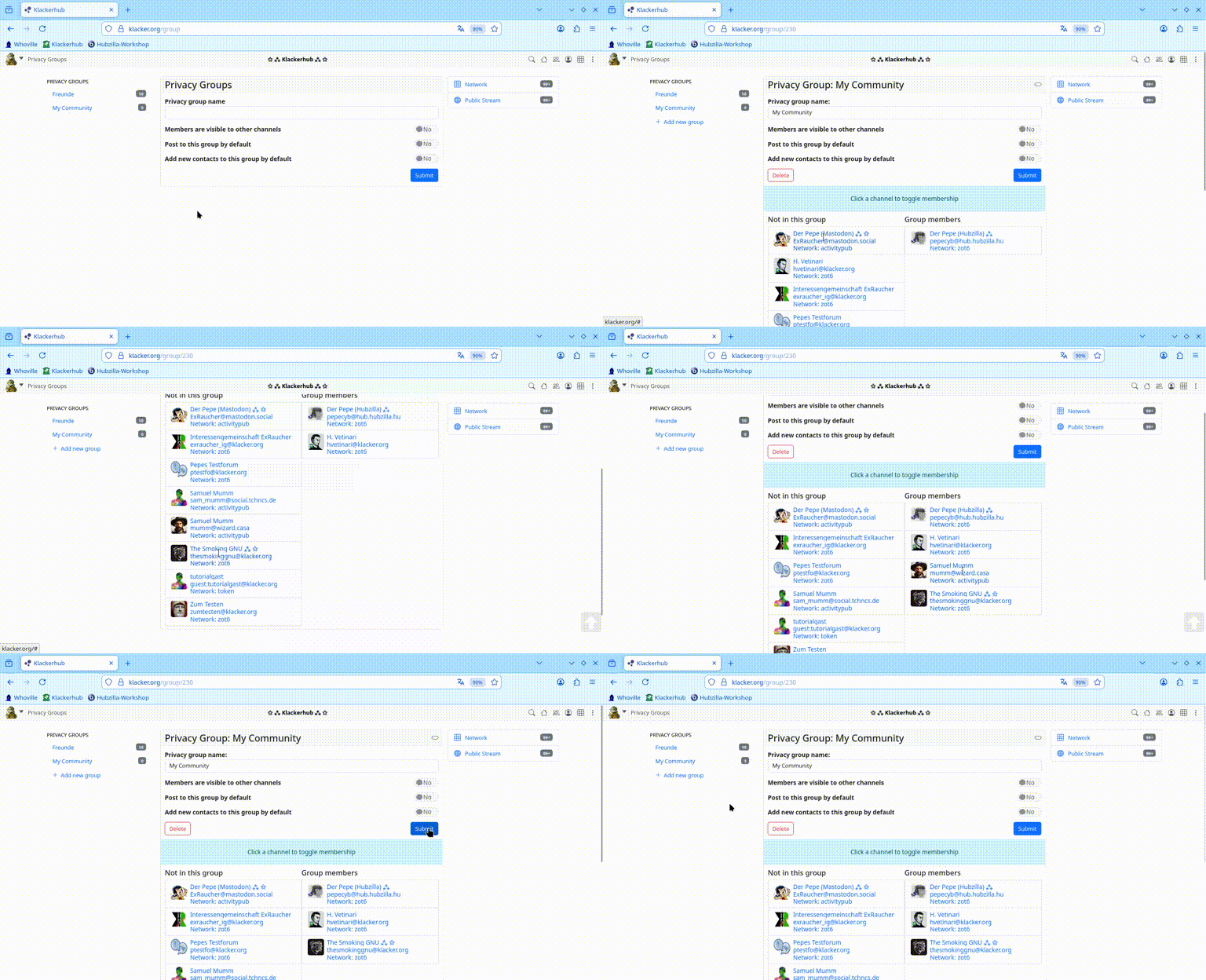
As an example, I have created the privacy group ‘My Community’ and will now add some connections to the group. This is done with a simple click on the connection. After clicking, the connection changes pages, landing either in the column with the members or in the column with the connections that do not belong to the group.
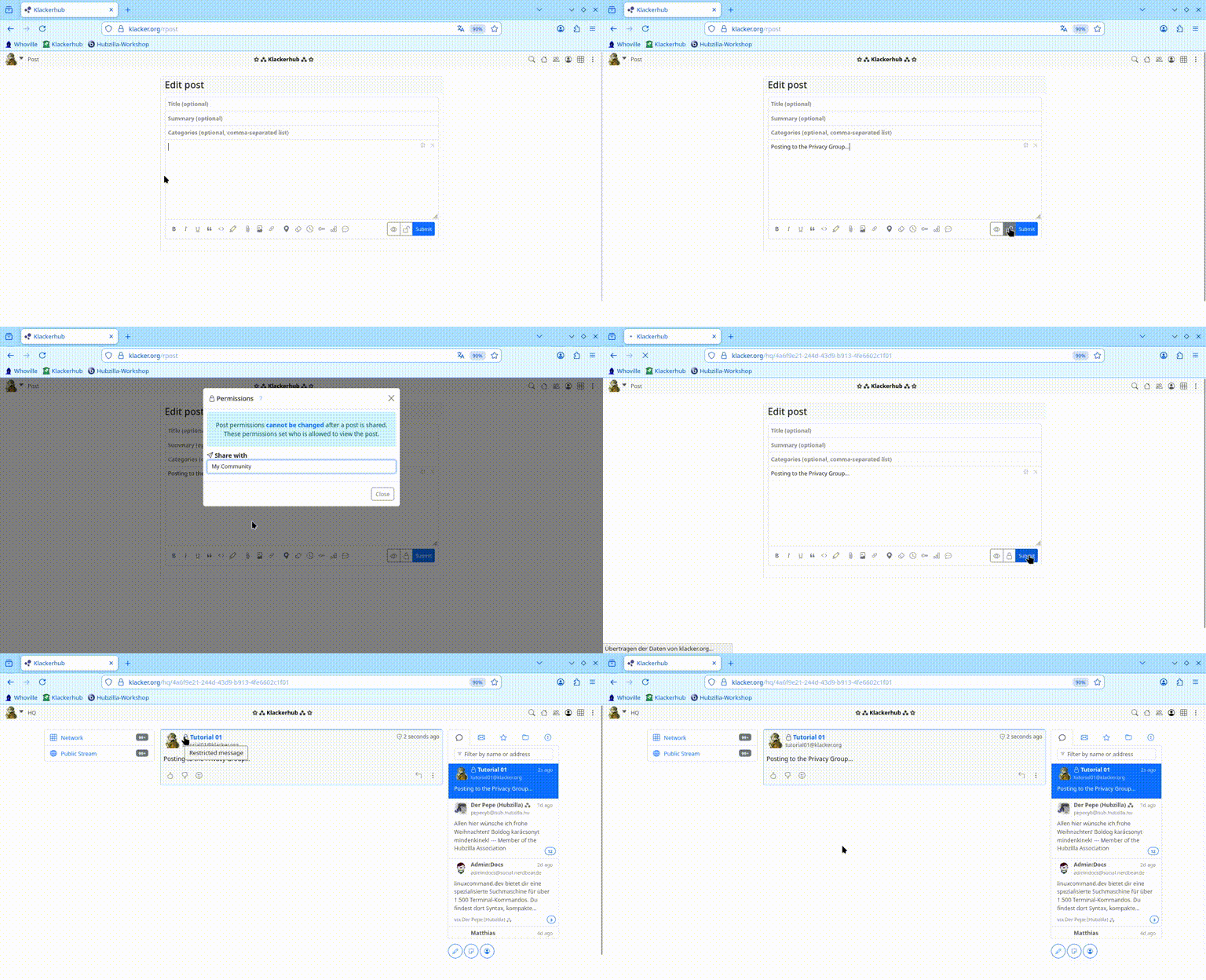
To post to this privacy group (i.e. to distribute a post exclusively to the members of the group), select the appropriate privacy group in the permissions settings in the post editor and then send your post.
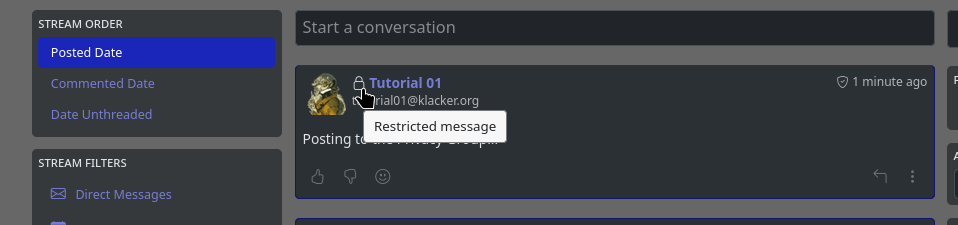
The post will now only reach the connections that are in the group.
If one of the contacts replies, i.e. sends a comment on the post, this will only be sent to everyone in the privacy group. And, of course, to the ‘owner’ of the privacy group, i.e. the person who sent the initial post.
This would allow you to implement a group, forum or community function.
However, there is one restriction!
In order to create a real group, it is necessary for everyone we have added to this privacy group to also create a privacy group of their own, which includes all participants, in order to send an initial post to this closed community.
With few members, this can be achieved (agreement is of course also necessary). However, this type of use is then also limited to the grid, i.e. to all services that use Nomad/Zot6 as a protocol. These are currently: Hubzilla and (streams).
As the thread creator, you can of course also add ActivityPub contacts from other Fediverse services, and the post will also reach them. They can also comment normally. The comment also remains within the group. However, you cannot start such a thread yourself without really cumbersome individual addressing (mentioning). So it is possible via mention, but it is extremely cumbersome, error-prone and impractical.
With forum channels
It is better and more reliable to create a forum channel for this purpose. Hubzilla has the advantage that you do not need a new account for this. You can create different channels with a single account. So you create a new channel and select the ‘Community Forum’ type as the channel role. This creates a channel that functions like a forum or a group similar to Facebook groups. When you post ‘in’ such a forum (i.e. direct your post to the forum channel in a specific way), the post appears in the stream of the forum channel and in the streams of everyone connected to that channel. Once you have created such a channel, you still have to decide whether new connections are accepted automatically or whether you, as the forum operator, want to approve the connection first. This can be done via Settings ➔ Privacy settings ➔ ‘Automatically approve new contacts’.
There are three ways to post in such a forum. The simplest is wall-to-wall posting. To do this, call up the forum channel from the stream (in the sidebar).
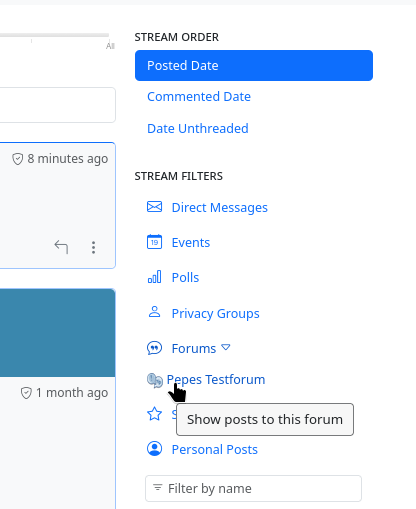
The forum channel stream will now appear in the content area (note: only new posts since you joined will be displayed).
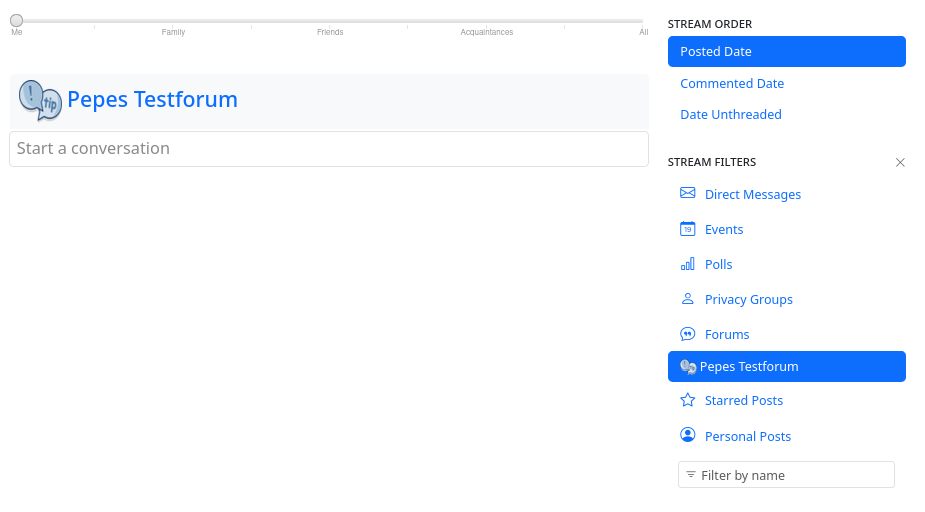
If you now click on the ‘Start a conversation’ field, the post editor appears and you can create a post that will be posted to the forum channel (and which all other forum members will then also receive).
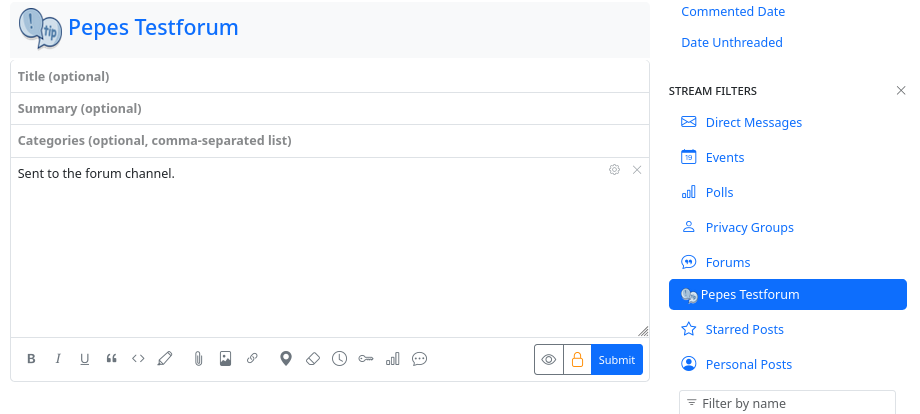
After sending, it ends up in the channel stream of the forum channel.
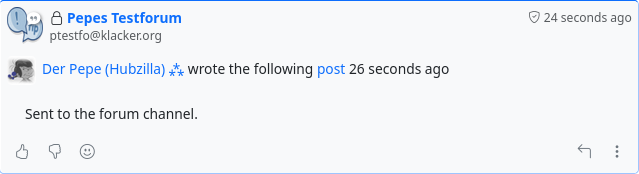
and will also be displayed to the other connections on the forum channel (who can then reply/comment, for example).
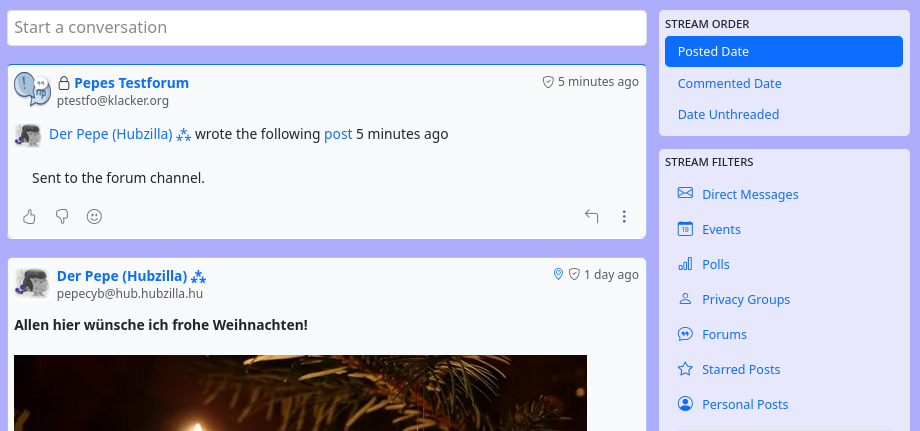
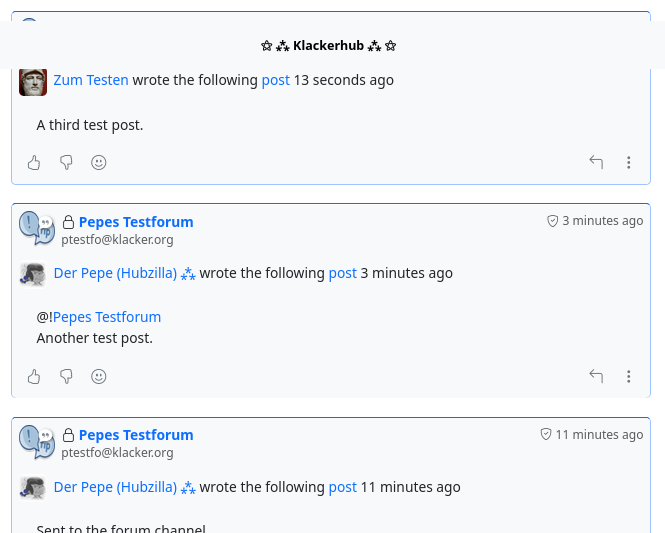
However, you can also simply open the post editor outside the forum (from your own stream, your own channel or from the app menu) and create a post for the forum channel there, addressing the forum using @!-mention.
To direct the post to the forum channel, you must mention the forum channel with the sequence @!<forum channel handle>.
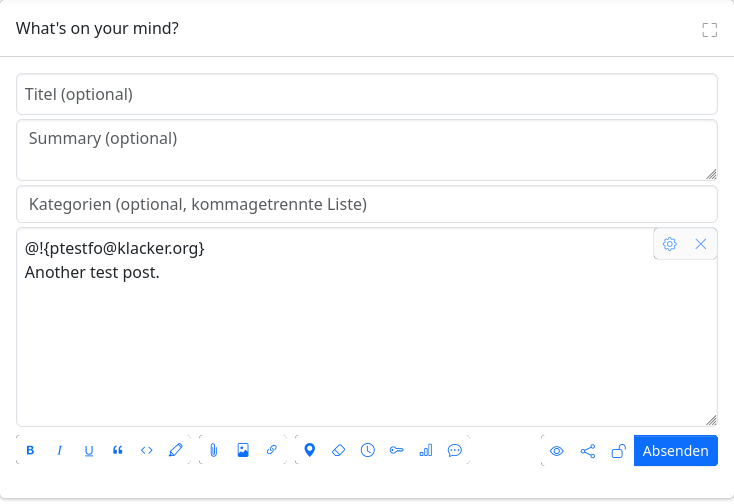
This post also ends up in the forum channel stream and is distributed to all connections of the forum channel.
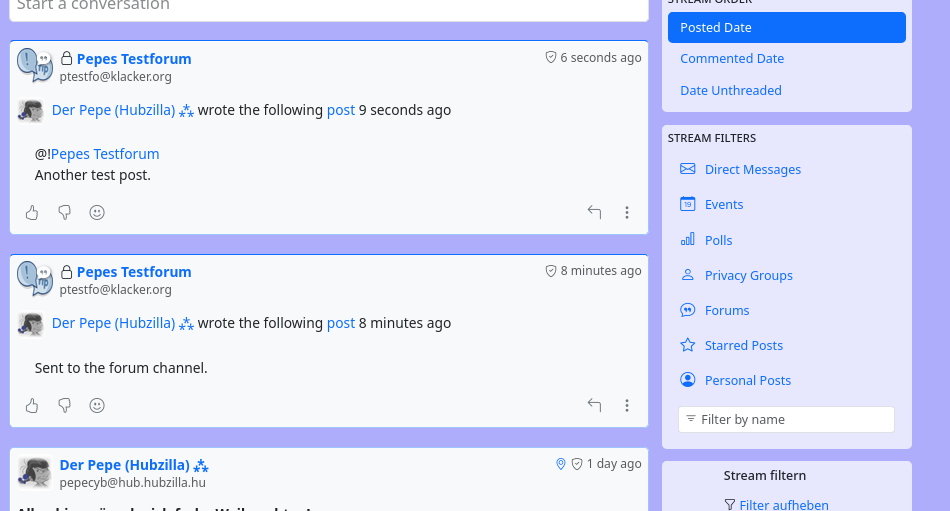
The third option is to use the permission settings ( /
/ ). Once forum channels are among your own connections, they will be displayed as options in the permission settings, where you can select them individually.
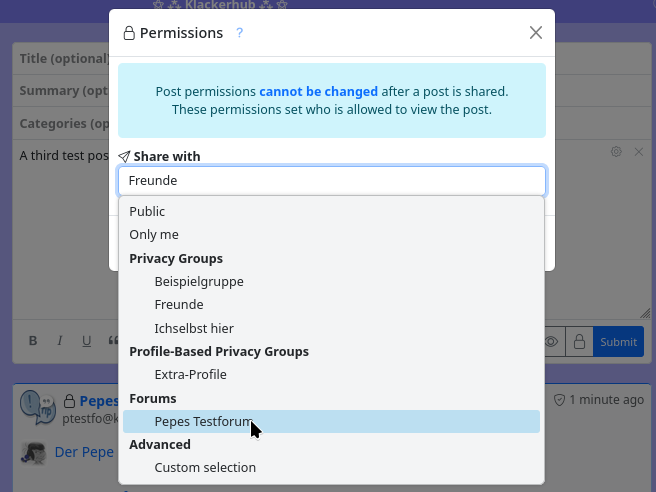
If you send a post with these settings, it will also be sent to the forum channel.
Closed group communication with a forum channel
If you want to create a closed group whose conversations are only visible to the members (connections) of the group, you must select the ‘Custom’ channel role. The posts in a preconfigured forum (type ‘Community Forum’) are publicly visible.
So when creating the channel, select the channel role ‘Custom’. Now you have to explicitly define the permissions.
You can do this under Settings ➔ Privacy Settings ➔ ‘Custom Configuration of Channel Role’. Ignore the warning (‘Accept the risk and continue’) and proceed!
Now set the permissions
- Can see my channel stream and posts
- Can see my default profile
- Can see my connections
- Can see my file and image folders
- Can see my channel’s web pages
- Can see my wiki pages
- Can post on my channel page (‘wall’)
- Can comment on and like/dislike my posts
- Can send me direct messages
- Can like/dislike profiles and profile items
- Can chat with me
to ‘Accepted connections’. Set all other permissions to ‘Only those you explicitly allow’ and enable ‘Group actor’ at the bottom of the form (this turns the channel into a forum).
Then close the dialogue box and submit the current settings by clicking on the ‘Submit’ button. Here, it is definitely advisable to leave the ‘Automatically approve new contacts’ option disabled so that not everyone can easily gain access to the group by establishing a connection.
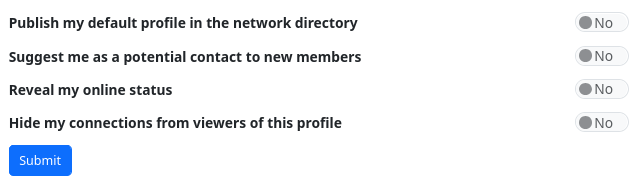
If you then prevent publication in the directory and automatic suggestion of the channel as a contact in the profile settings, you will have a hidden, invisible group. If you allow publication, the private group can be found, but membership must be confirmed by the channel owner (‘Approve connection’).
What about other Fediverse services?
From Mastodon, Misskey and Mitra, you can only start new topics by setting the post to ‘private’ and addressing the forum via normal mention (i.e. @<forum>@<hubzilla-hub>) (without the ‘!’). When replying to existing threads, there is nothing to consider. Just comment.
Currently, it is not possible to start a thread via wall-to-wapp posting from (streams) and Forte. In this case, we recommend mentioning with ‘@!’. This works.
With Friendica, it currently only seems to work with replies and comments to forum posts. New posts in the forum are displayed on Friendica and you can comment or read other people’s comments. It does not appear to be possible to start a new topic at present.
Akkoma/Pleroma are not really usable. At least in my attempts, it was possible to send a start post to the forum, which all members of the forum could see, but you do not receive any posts or replies from the forum channel.
Unfortunately, I cannot say whether GoToSocial works because I do not have an account and cannot find an instance where I could create one. It may work in the same way as Mastodon, but I cannot verify this.
Other Fediverse services and closed forums
Since Hubzilla uses Open WebAuth (OWA) to manage permissions, users of a Hubzilla channel can interact with a closed forum as normal. This does not work as well with other services. Even Mitra, which also uses OWA, cannot access a forum so easily. Ultimately, in order to get an overview of what is happening in the forum (as when filtering the Hubzilla stream), users of other services have to access the forum channel themselves.
And this is where they reach the limits of what is feasible. How is Hubzilla supposed to know that the user is authorised (otherwise the forum and its content should not be visible to third parties) if authorisation is not verified by a corresponding token?
The only option is for the owner of the forum channel to create a guest account, which can then be used to access the forum channel. However, this is a matter of trust. The guest username and password must be disclosed to all non-Hubzilla members, but must not be passed on to third parties (otherwise it is no longer ‘closed’). This should work, because anyone who uses a closed forum does not want to have uninvited guests.
Setting up guest access is simple:
The ‘Guest Access’ app must be installed.
Now you can open the app and a form for creating guest access will be displayed.
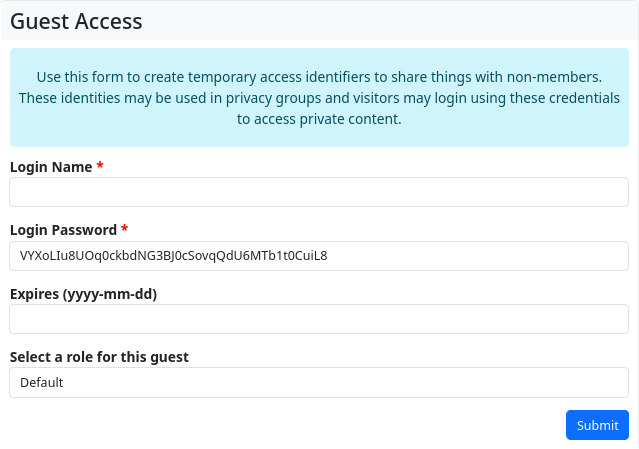
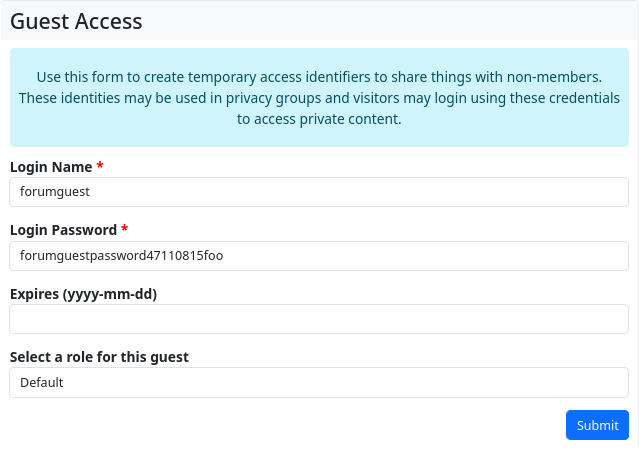
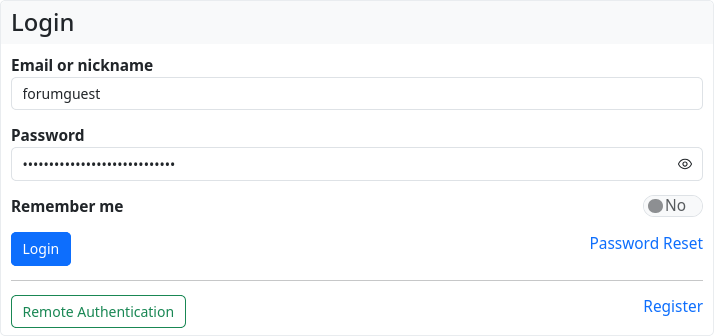
A random password is generated and already entered. However, it is possible to assign your own password. And you have to give the guest account a login name. As an example, I have used ‘forumguest’ as the login name and ‘forumguestpassword47110815foo’ as the login password (yes, not very secure, but don’t worry… this guest account has already been deleted 😉).
If someone without a Hubzilla channel (which is also connected to the forum channel) attempts to access the closed forum channel (i.e. a user of other Fediverse services), they will be denied access.

However, if he knows the login name and password, he can now click on ‘Login’ and log in with this information in the login dialogue box.
The forum channel is now displayed.
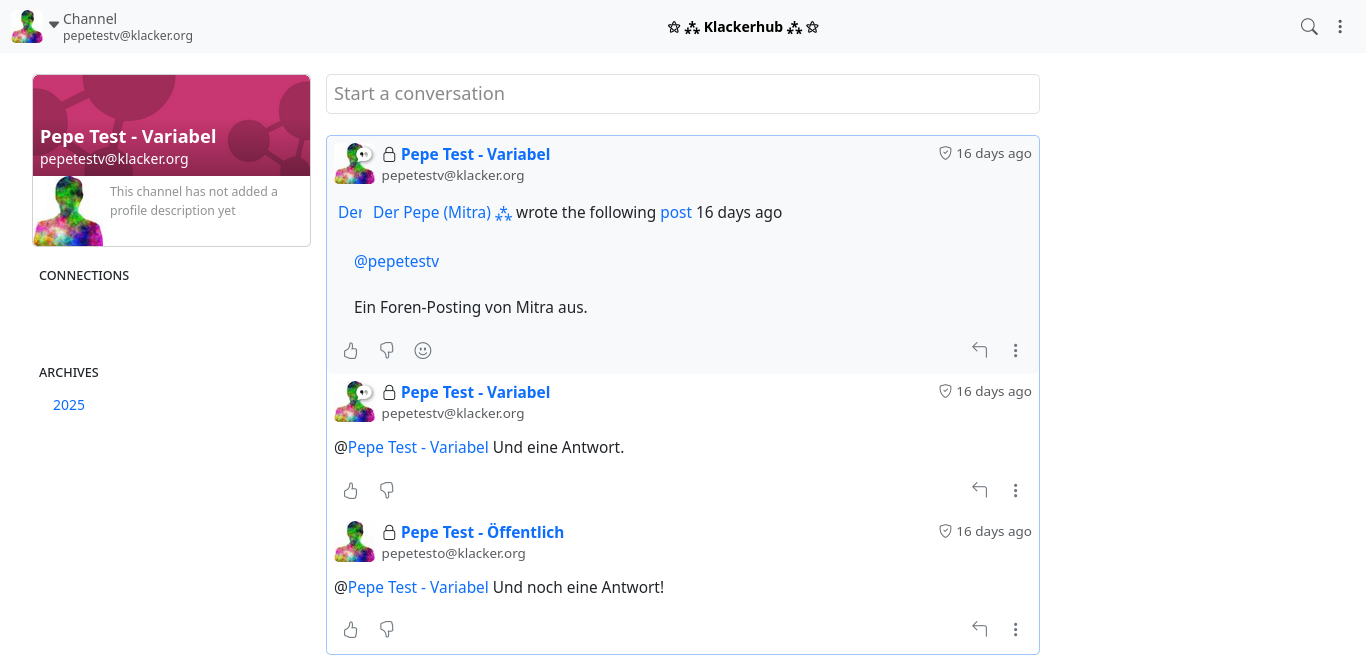
It would even be possible to create a post or comment on posts there via wall-to-wall posting. However, this is rather unsuitable because the ‘guest’ would then be displayed as the author in the channel stream for everyone.
It is better if the channel owner creates a special contact role for guest access, which does not allow wall-to-wall posting and commenting (unlike the standard channel role).
It is even easier to access the forum channel using guest access by entering its address and appending the sequence ?zat=<GUEST PASSWORD> to the URL.
So in the above example https://klacker.org/channel/pepetestv?zat=forumguestpassword47110815foo